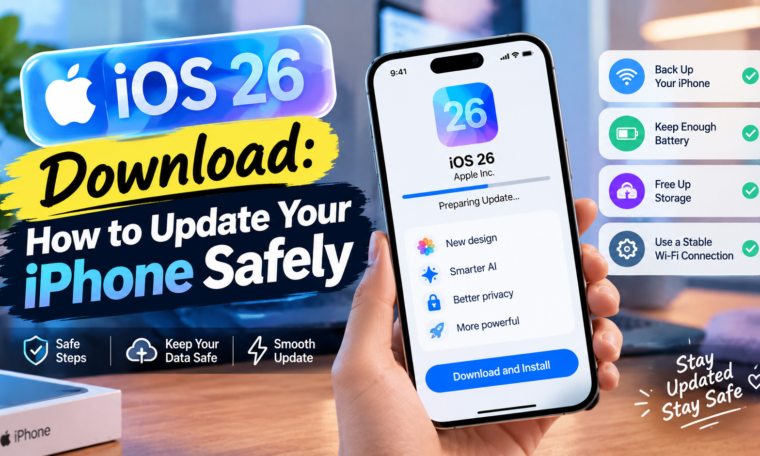
If you’re searching for iOS 26 download instructions, the safest method is Apple’s built-in Software Update feature. Apple provides wireless updates directly through the iPhone’s Settings app, allowing compatible users to download and install the operating system without relying on unofficial websites.
However, there is an important 2026 context: iOS 27 is now the current major iPhone operating system, following its September 14, 2026 release. Therefore, users looking for iOS 26 today may encounter a newer version instead, depending on their device and Apple’s current update path.
If your iPhone still offers an iOS 26 update or a later iOS 26.x release, here’s how to approach the process safely.
What Is iOS 26?
iOS 26 introduced Apple’s Liquid Glass design, expanded customization, updated system applications, and new Apple Intelligence capabilities on supported hardware.
Apple described iOS 26 as a major iPhone update featuring a new design and improvements to Phone, Messages, Camera, Photos, Safari, CarPlay, Apple Music, Maps, and Wallet.
The exact features available can vary according to the iPhone model, language, and region.
Check Your iPhone Before Updating
Before downloading an update, check your current iOS version.
Go to:
Settings → General → About
Look for the iOS version information.
You can then open:
Settings → General → Software Update
Apple says this screen displays the installed iOS version and whether an update is available.
Back Up Your iPhone First
A backup is one of the most important precautions before a major software update.
You can back up your iPhone using iCloud or a computer.
A backup gives you an additional layer of protection if something goes wrong during an update or if you need to restore your information later.
Apple’s update guidance recommends backing up the device before updating.
Connect to Wi-Fi
Major iOS updates can be large.
Use a reliable Wi-Fi connection rather than relying on mobile data whenever possible.
A stable connection reduces the chance of the download being interrupted.
Charge Your iPhone
Connect the iPhone to a charger before beginning the installation.
Apple recommends connecting the device to a power source during the update process.
Keeping the phone powered also helps avoid interruptions if the installation takes longer than expected.
How to Download iOS 26
If iOS 26 is offered for your device:
- Open Settings.
- Tap General.
- Select Software Update.
- Review the available update.
- Tap Download and Install.
- Enter your passcode if requested.
- Follow the onscreen instructions.
- Allow the iPhone to restart and complete installation.
These steps follow Apple’s official update process.
Turn On Automatic Updates
You don’t necessarily need to manually check for every update.
Apple allows users to manage automatic updates through:
Settings → General → Software Update → Automatic Updates
Depending on the available options, you can allow the iPhone to automatically download or install updates.
Apple says automatic installation can occur overnight when the device is charging and connected to Wi-Fi.
Don’t Download iOS From Unofficial Websites
Avoid downloading unknown iOS files from random websites.
Unofficial firmware files, modified installers, or suspicious configuration profiles can create security and compatibility risks.
For normal iPhone users, the built-in Software Update system is the simplest and safest route.
What If the iOS Update Doesn’t Appear?
Several reasons can explain why an update isn’t visible.
Your device may:
- Already have a newer version installed
- Not support the requested version
- Have insufficient storage
- Have a network problem
- Be experiencing temporary server availability issues
If an update doesn’t appear, Apple also provides computer-based update options.
Free Up Storage Before Updating
If your iPhone has very little free storage, the update may not install normally.
Go to:
Settings → General → iPhone Storage
Review large apps, videos, downloads, and other unnecessary files.
You don’t need to delete everything. Freeing enough space for the update and temporary installation files may be sufficient.
What If Your iPhone Runs Slowly After Updating?
Don’t panic if your phone feels slightly different immediately after a major update.
The system may perform background tasks such as indexing content, organizing files, and updating applications.
Give the phone some time and keep it connected to power when convenient.
If serious problems continue, check Apple’s support resources for the specific issue.
Should You Update Immediately?
For most users, keeping an iPhone updated is important for security, bug fixes, and new features.
However, major updates can also introduce changes that require users to adjust to a redesigned interface or modified settings.
Before updating, make sure your important information is backed up and that your most-used applications support the new version.
iOS 26 vs Current iOS Version
Because iOS 27 has now been released, an article specifically targeting iOS 26 download should make the distinction clear for readers.
iOS 26 remains relevant when discussing its features, compatible devices, and version history. However, users seeking the newest major iPhone software should check the Software Update screen on their device for the currently offered version. Apple provides the update availability directly through Settings.
Final Thoughts
The safest way to handle an iOS 26 download is through Apple’s official Software Update system. Back up your iPhone, connect to Wi-Fi and power, check available storage, and install the update through Settings.
Because iOS 27 is now the current major release in September 2026, your iPhone may show a newer update instead of iOS 26.
Avoid unofficial download sources and always check the exact version offered for your iPhone. A few minutes of preparation can make the update process much smoother.